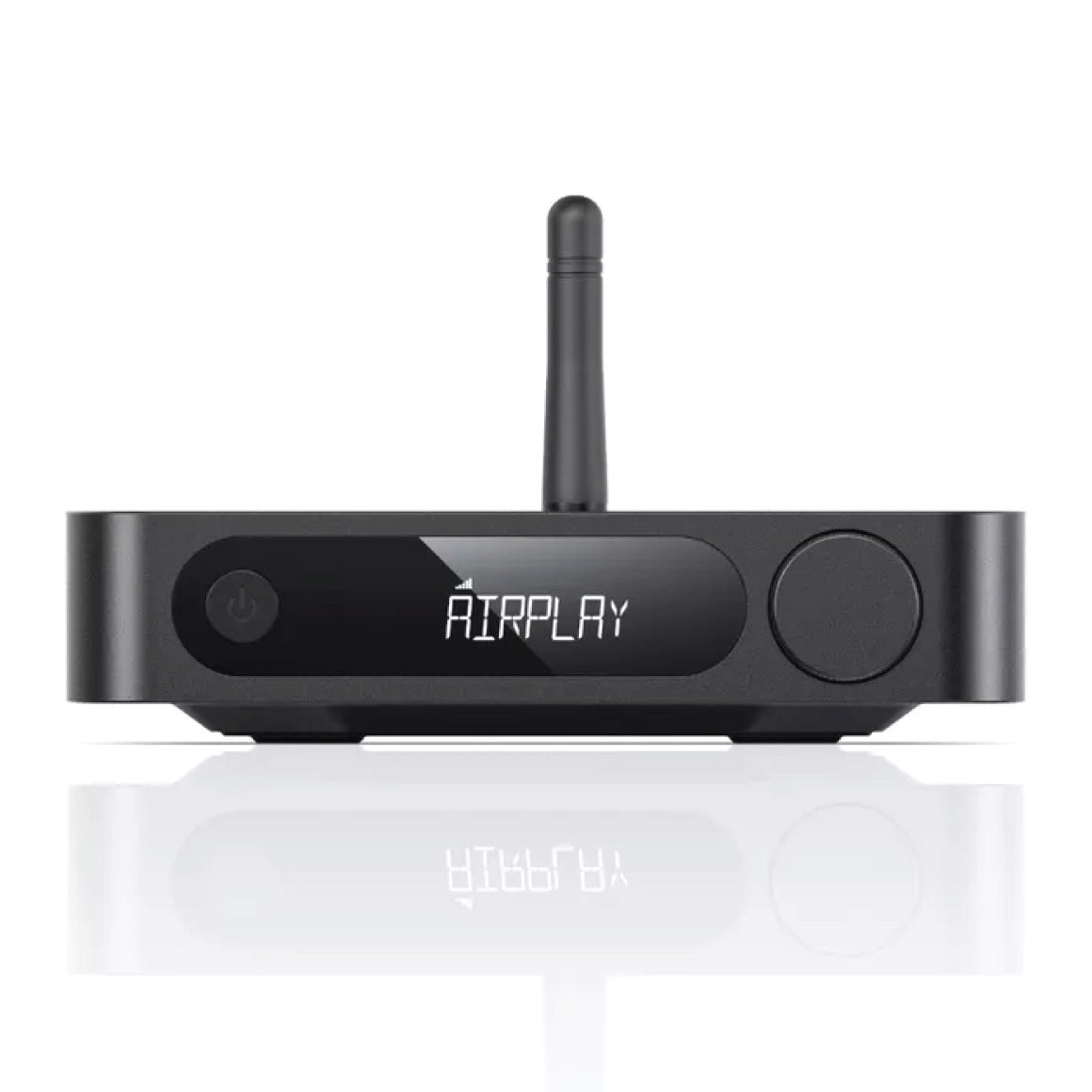
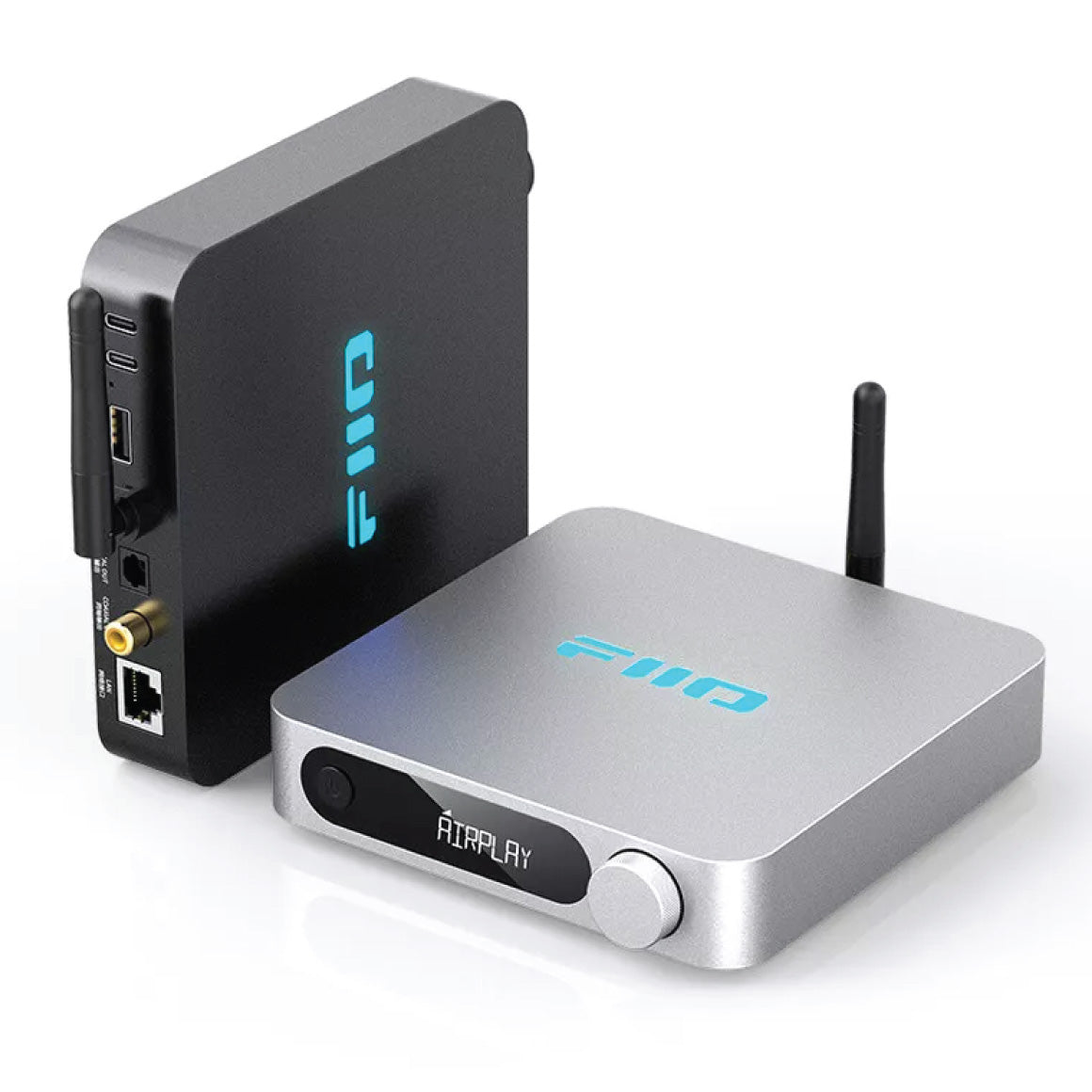
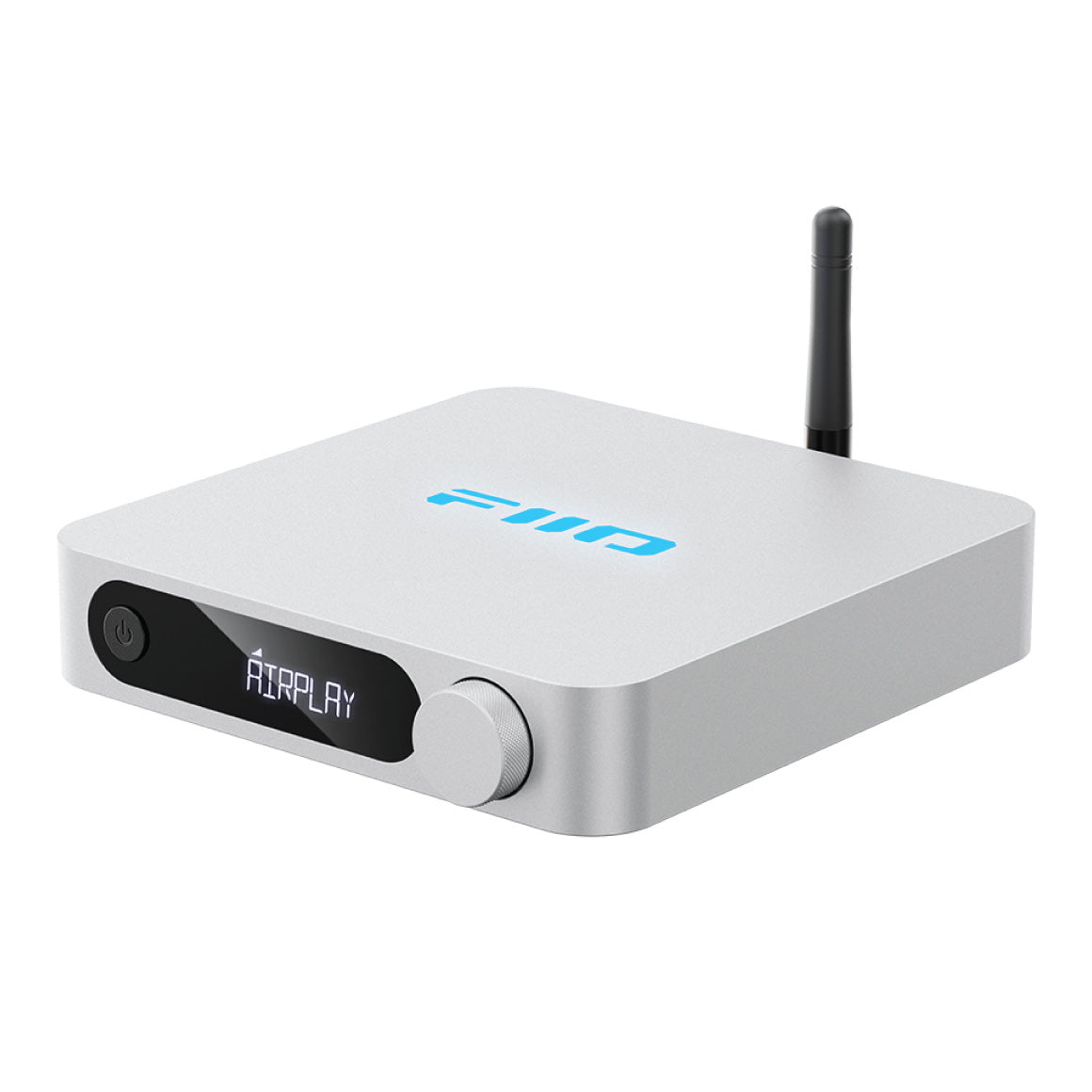

FiiO - SR11
Desktop WiFi Streamer
₹ 9,999
DELIVERY
Dispatches in 48 hours
RETURNS & WARRANTY
7 Day Replacement Guarantee
1 Year Warranty
FiiO Introduces The Next Gen Lossless Music Streamer - The SR11
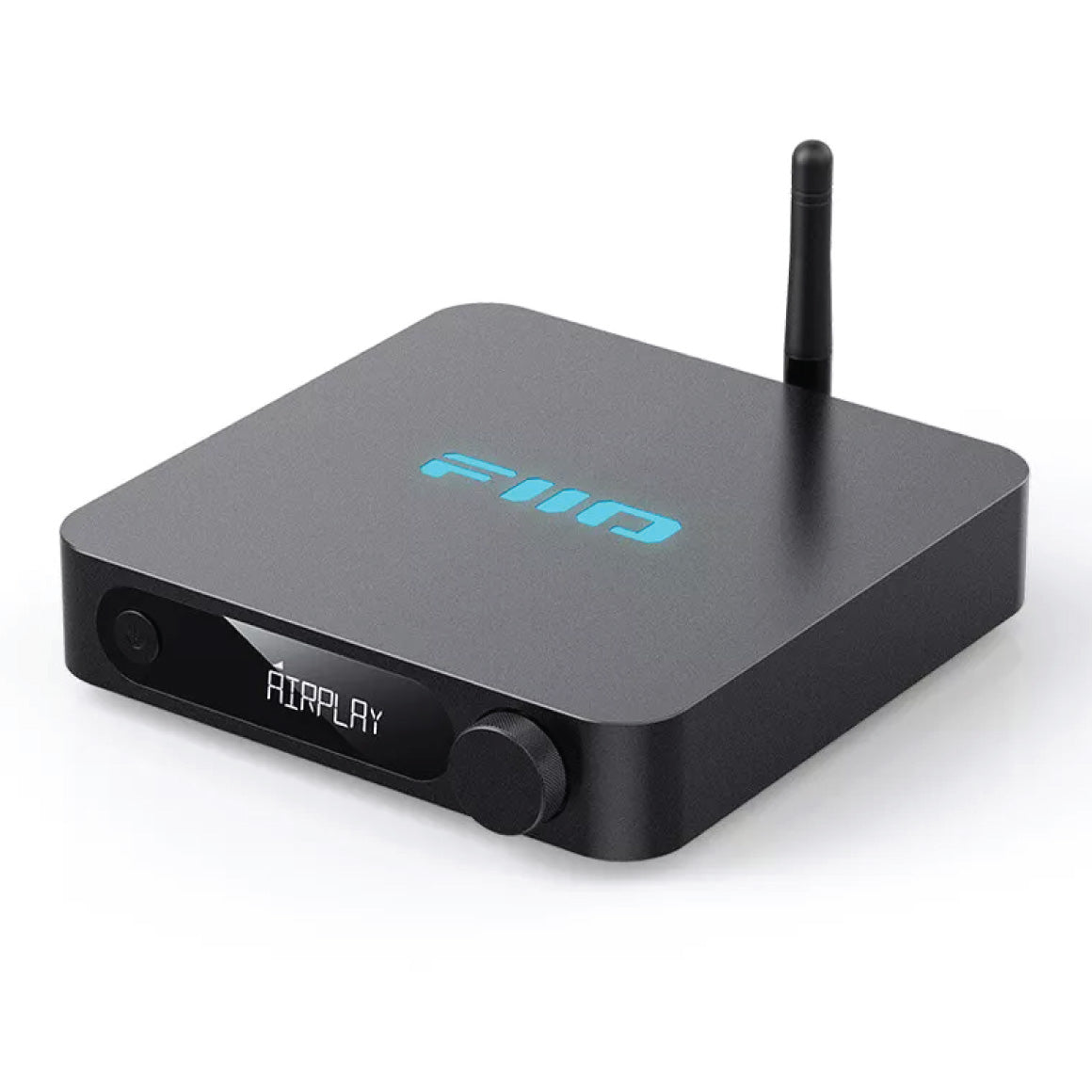
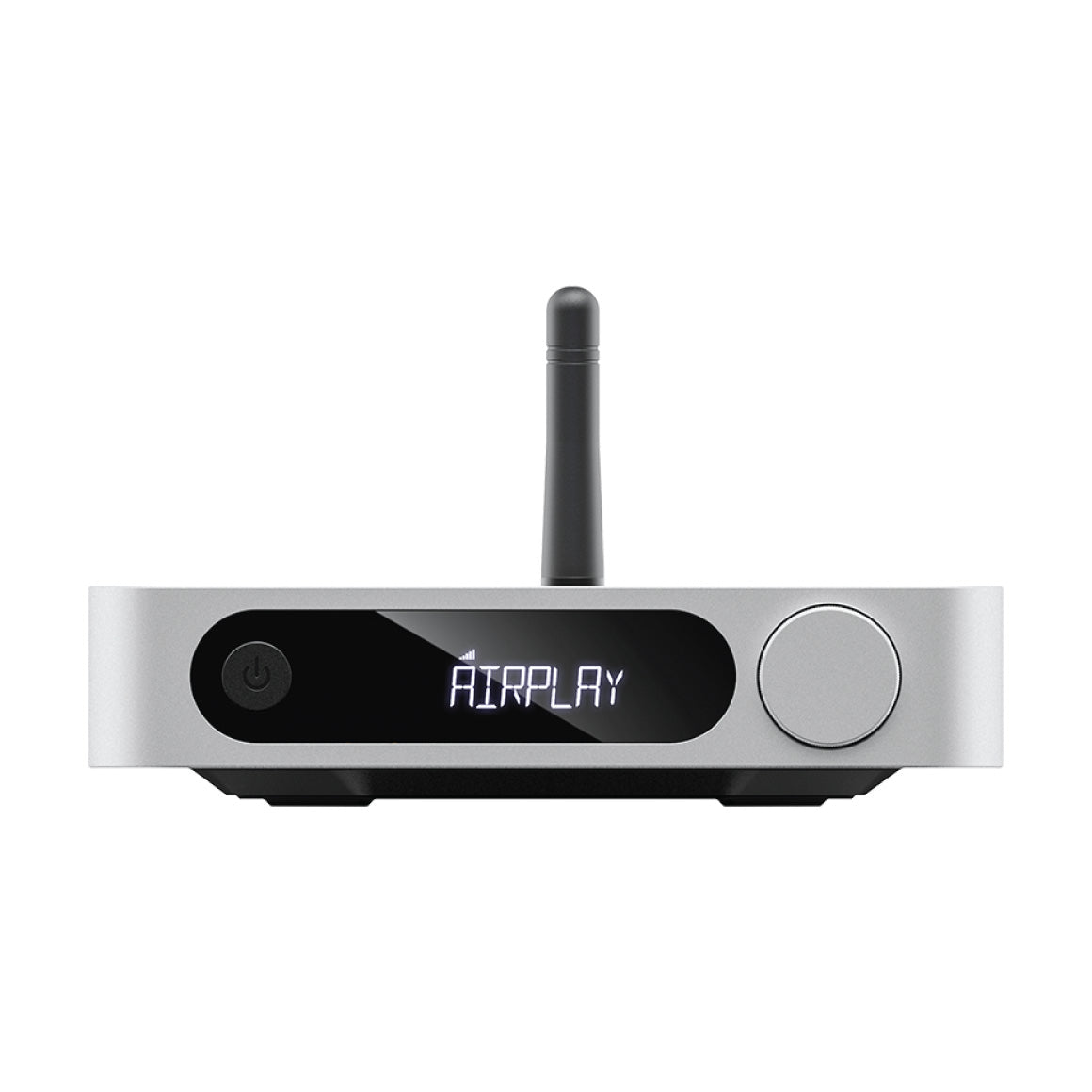
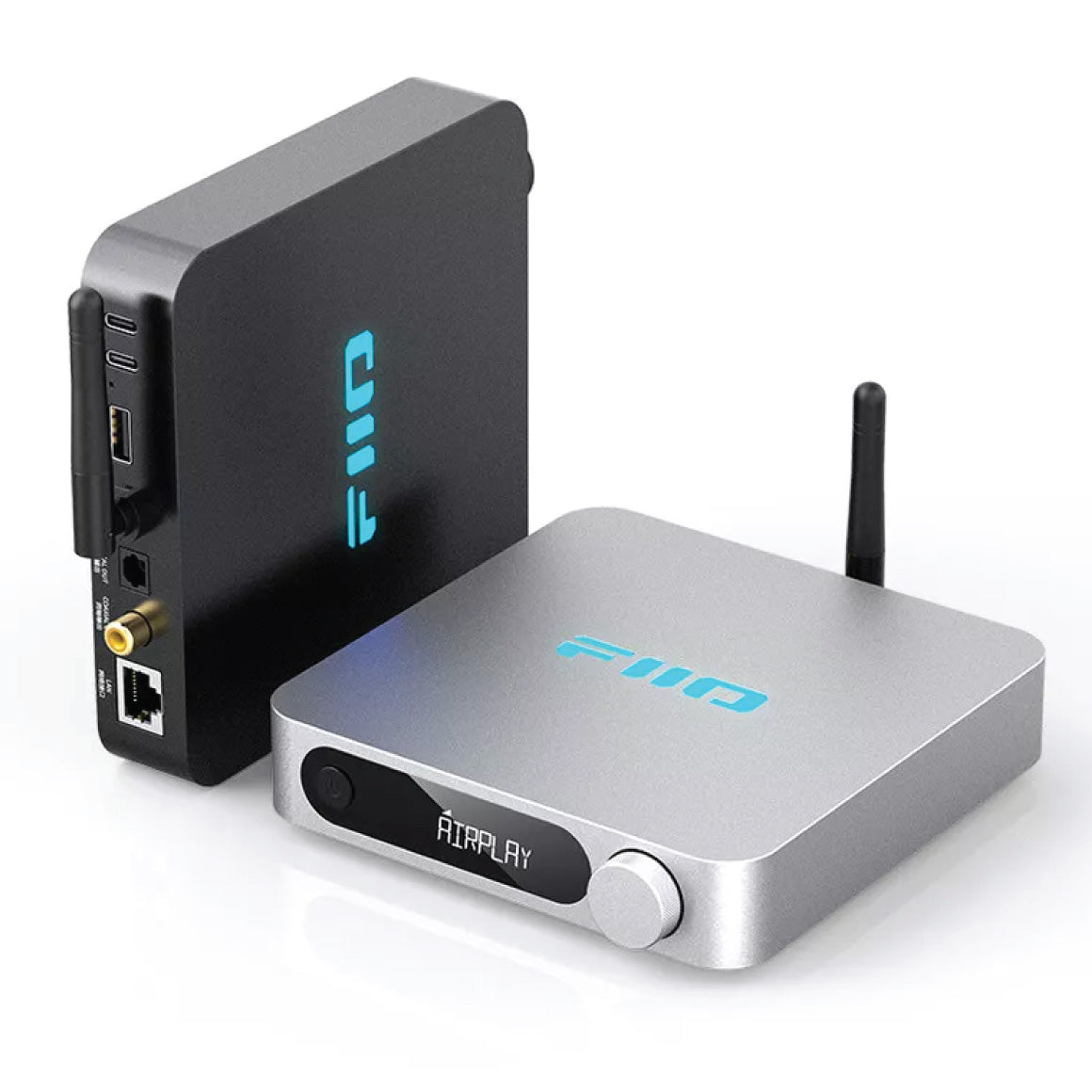
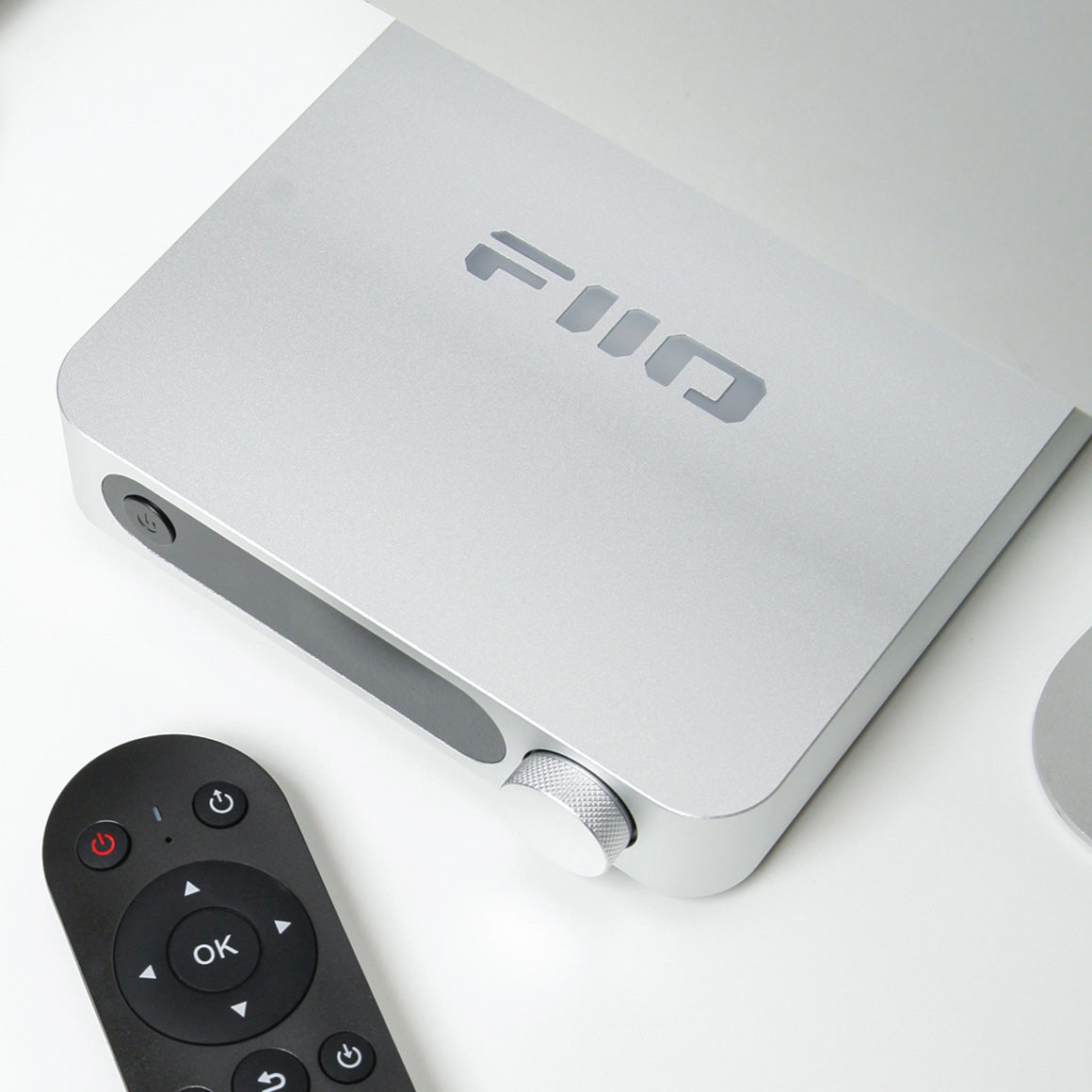
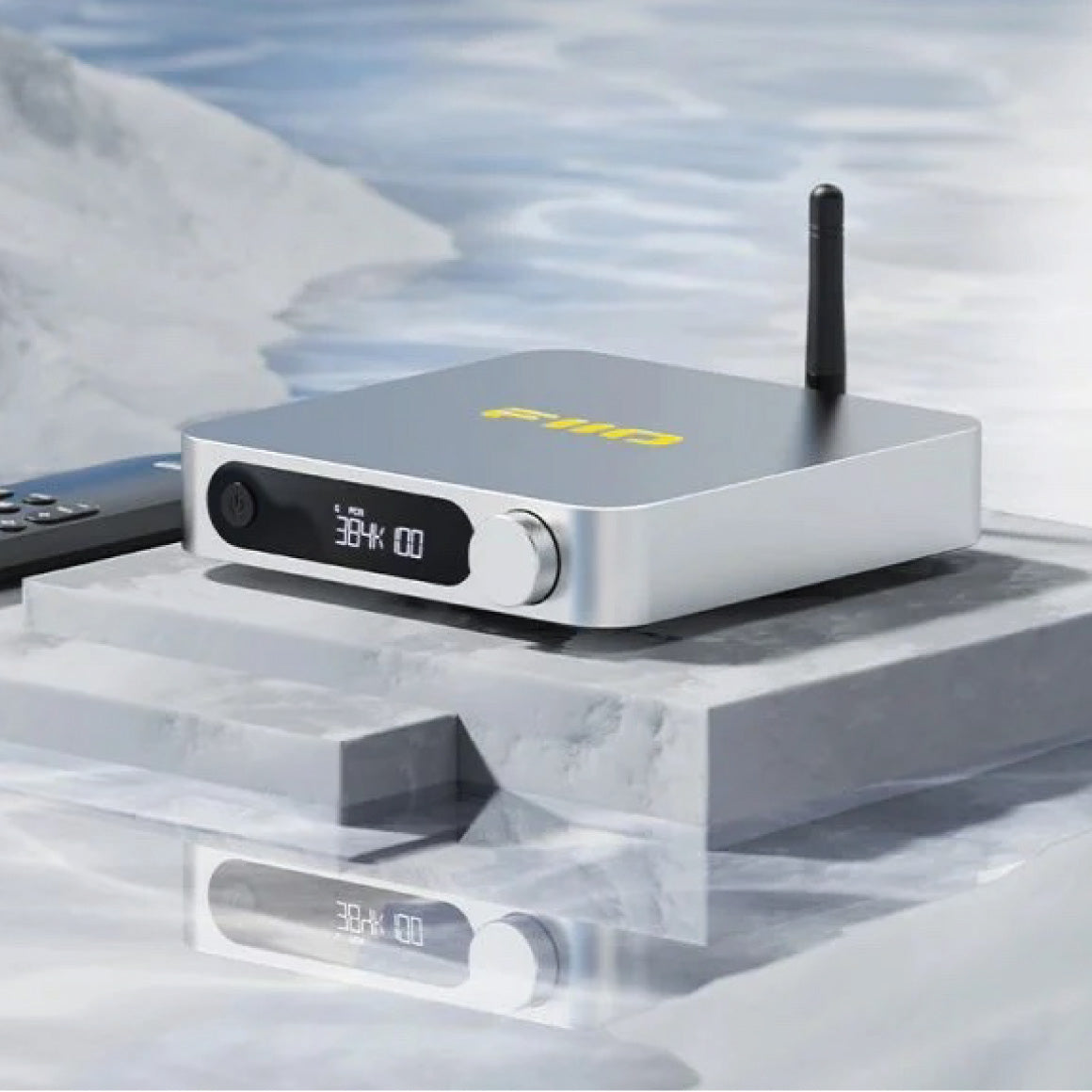
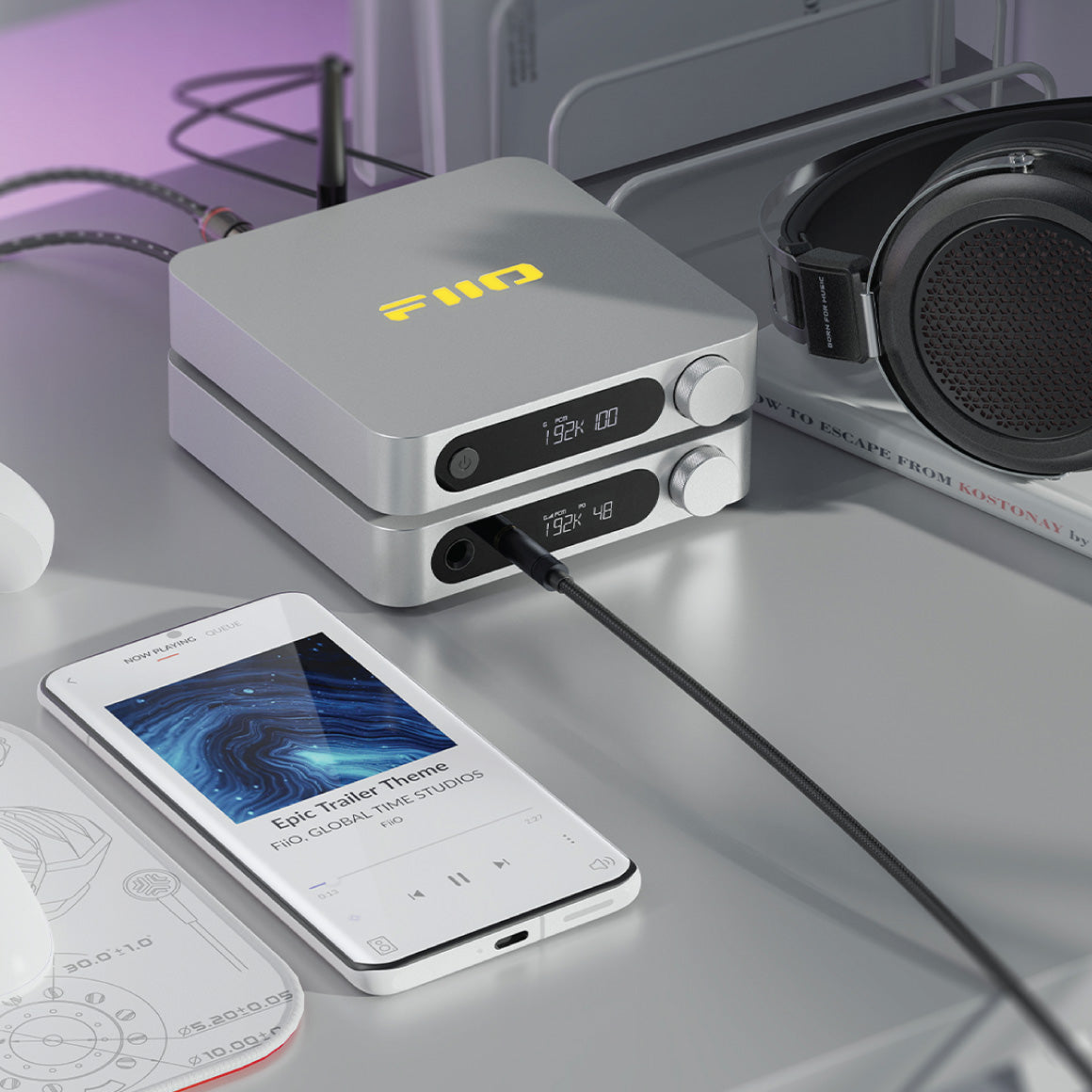
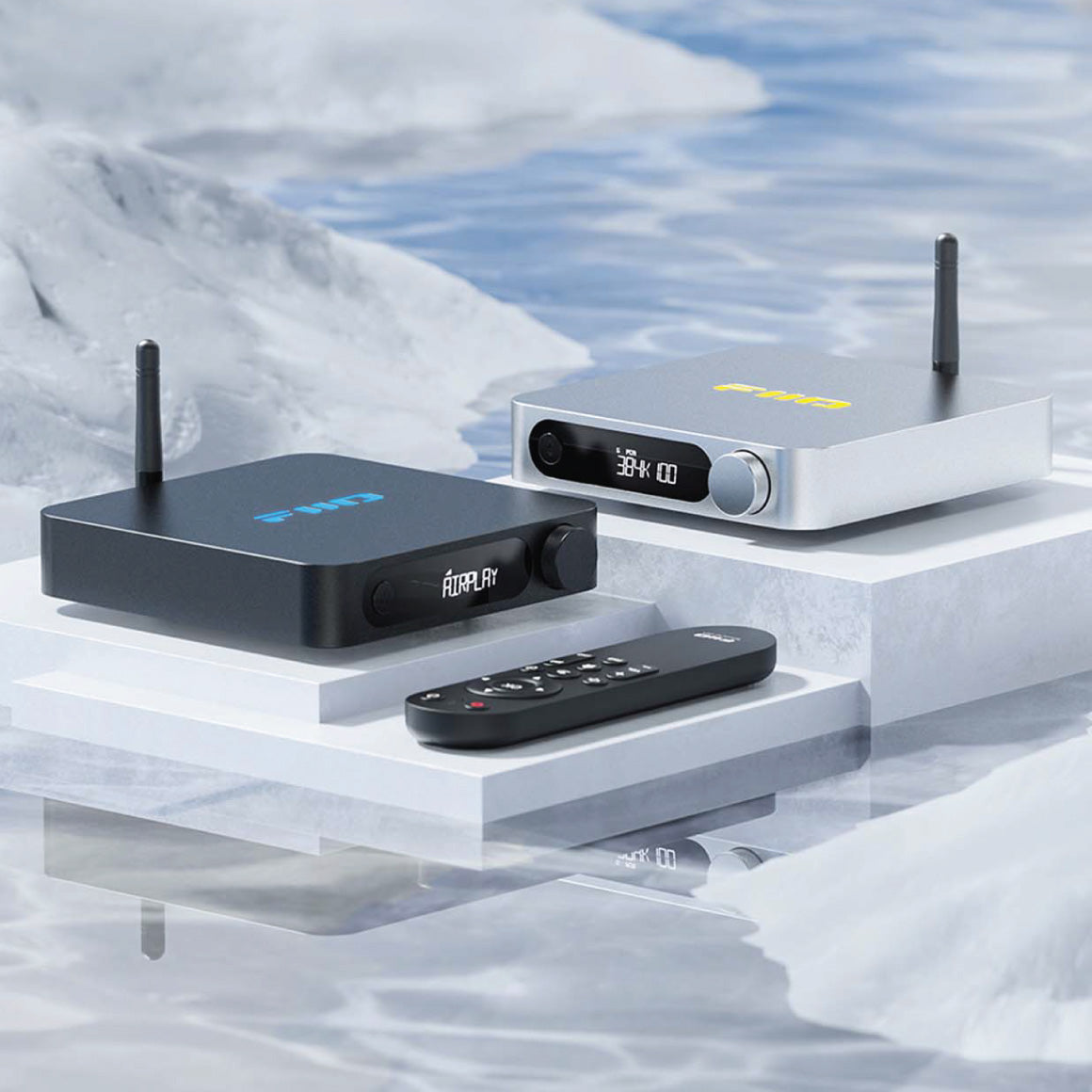
FiiO's SR11 is a high-performance lossless streaming music receiver, featuring a powerful multi-core processor with unique XBurst2 dual-logic and XBurst0 small cores for efficient data transmission and smooth playback. It includes a 1000Mbps Ethernet port for fast audio signal processing and supports dual-band Wi-Fi (2.4 and 5GHz) for lossless streaming. Compatible with iPhone, iPad, MacBook, and iMac mini, the SR11 offers versatile connectivity with optical, coaxial, USB Type-A, and Type-C digital outputs. It also supports Roon streaming for multi-device control and features an LCD screen and a custom infrared remote control. With its aluminium alloy body, the SR11 will receive continuous updates to enhance the music listening experience.

Embeds A High-Performance Multi-Core Processor With Low Power Consumption
FiiO SR11 is embedded with a powerful X2000 multi-core processor that houses one core based on the unique XBurst2 dual-logic core and XBurst0 small core. This processor boasts a computing process, strong real-time capabilities and low power consumption. FiiO SR11 provides accurate data transmission to ensure stable and smooth music playback.
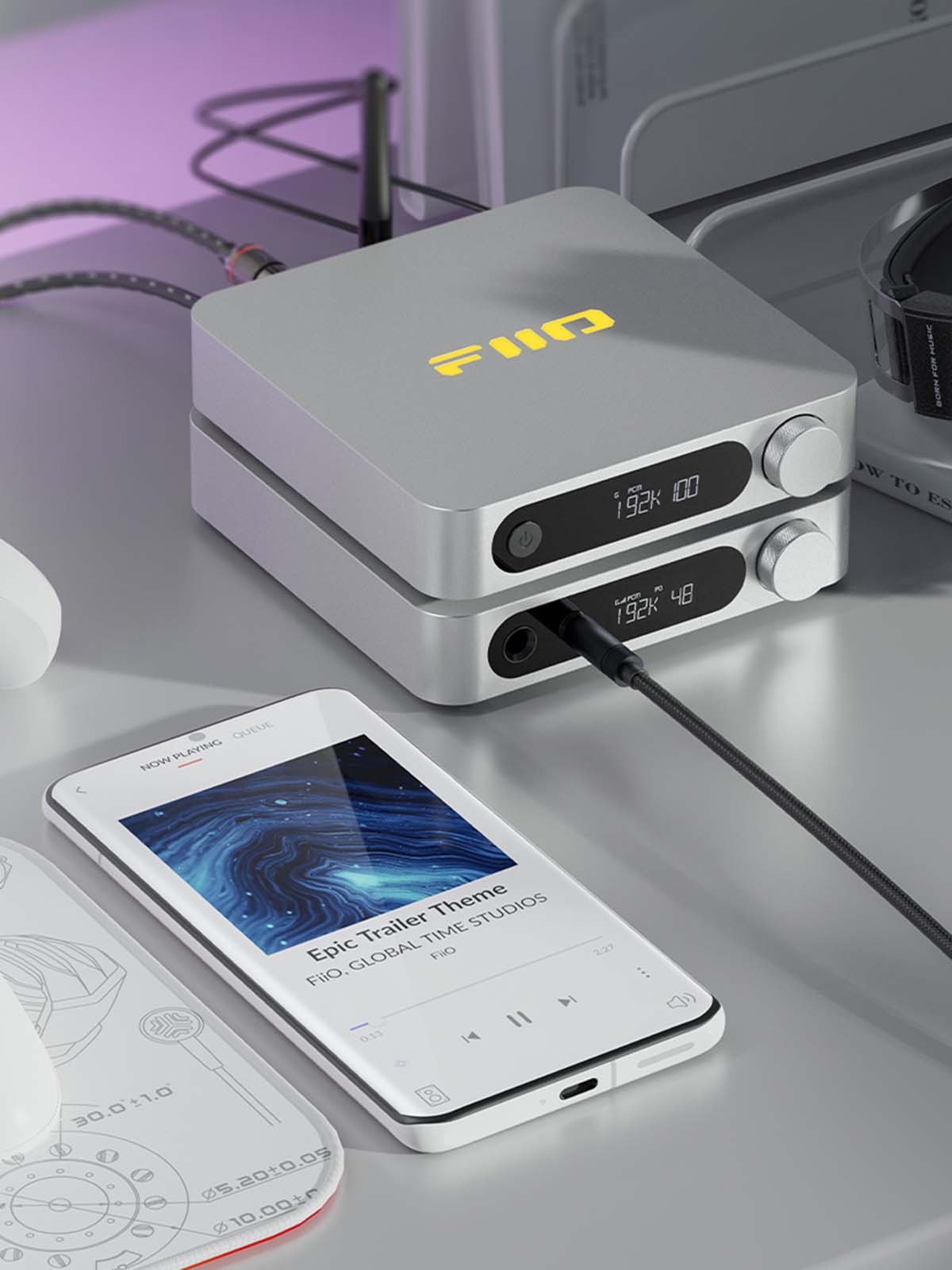
Roon Ready & Offers Seamless Airplay Streaming Protocol
FiiO SR11 features Roon streaming that conveniently allows online and local music libraries for quick playback from NAS (Network Attached Storage) or other devices with easy access to the streaming music catalogue. Roon enables you to control different devices to play different or the same music for a fully integrated and convenient streaming experience. FiiO SR11 can be paired with an iPhone, iPad, Macbook, or iMac mini to stream music smoothly and conveniently.
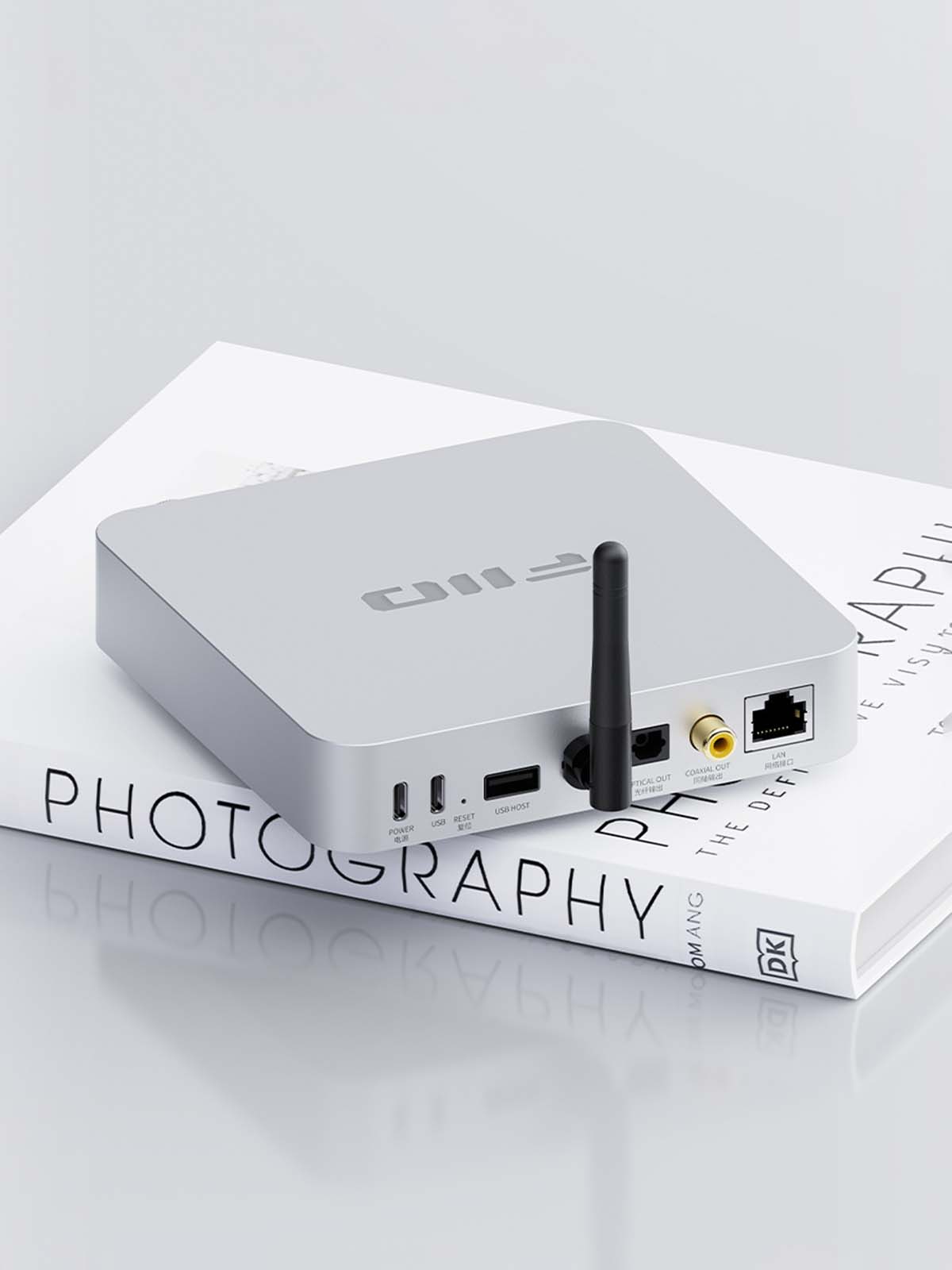
Wired And Wireless Inputs For Lossless Audio With Digital Outputs
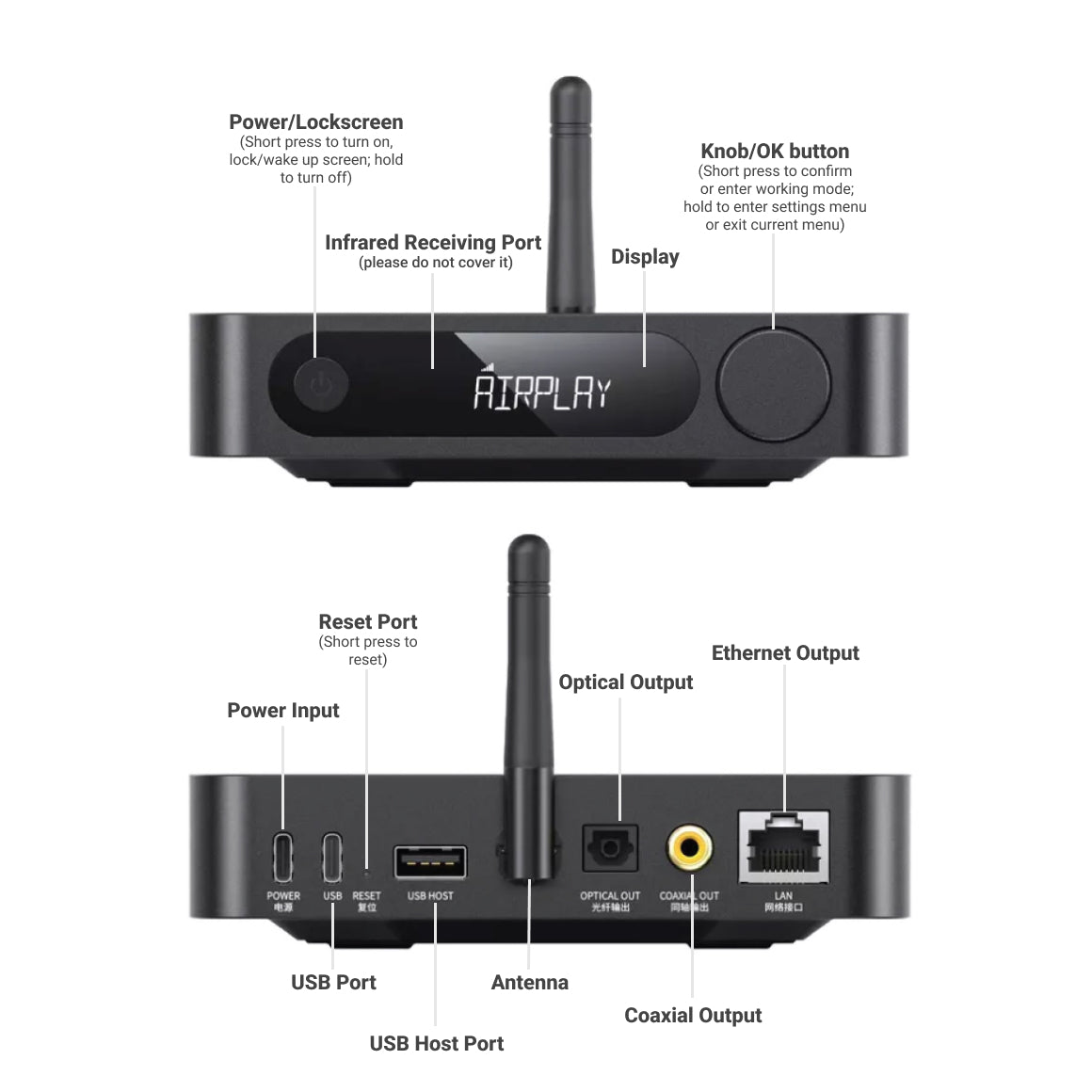
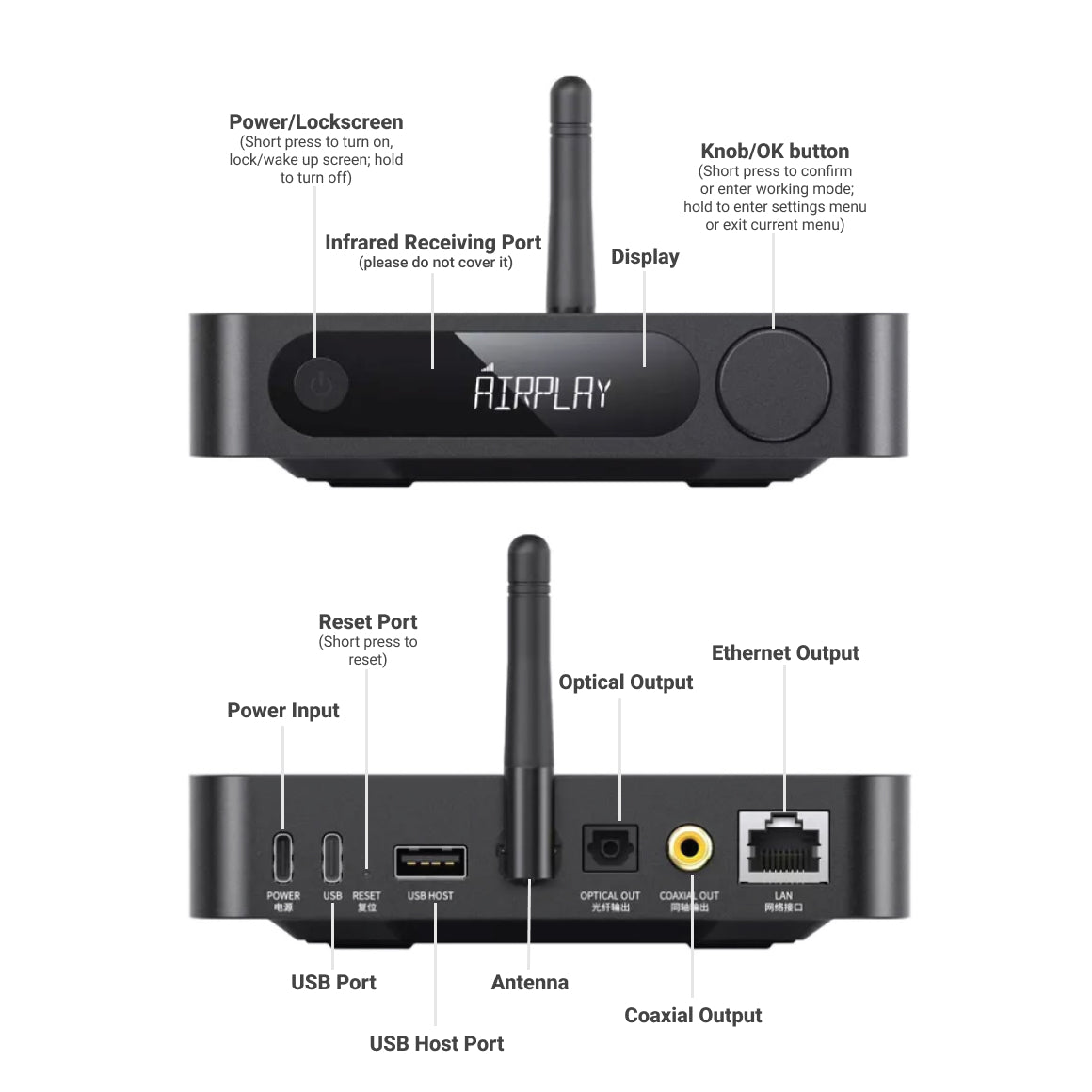
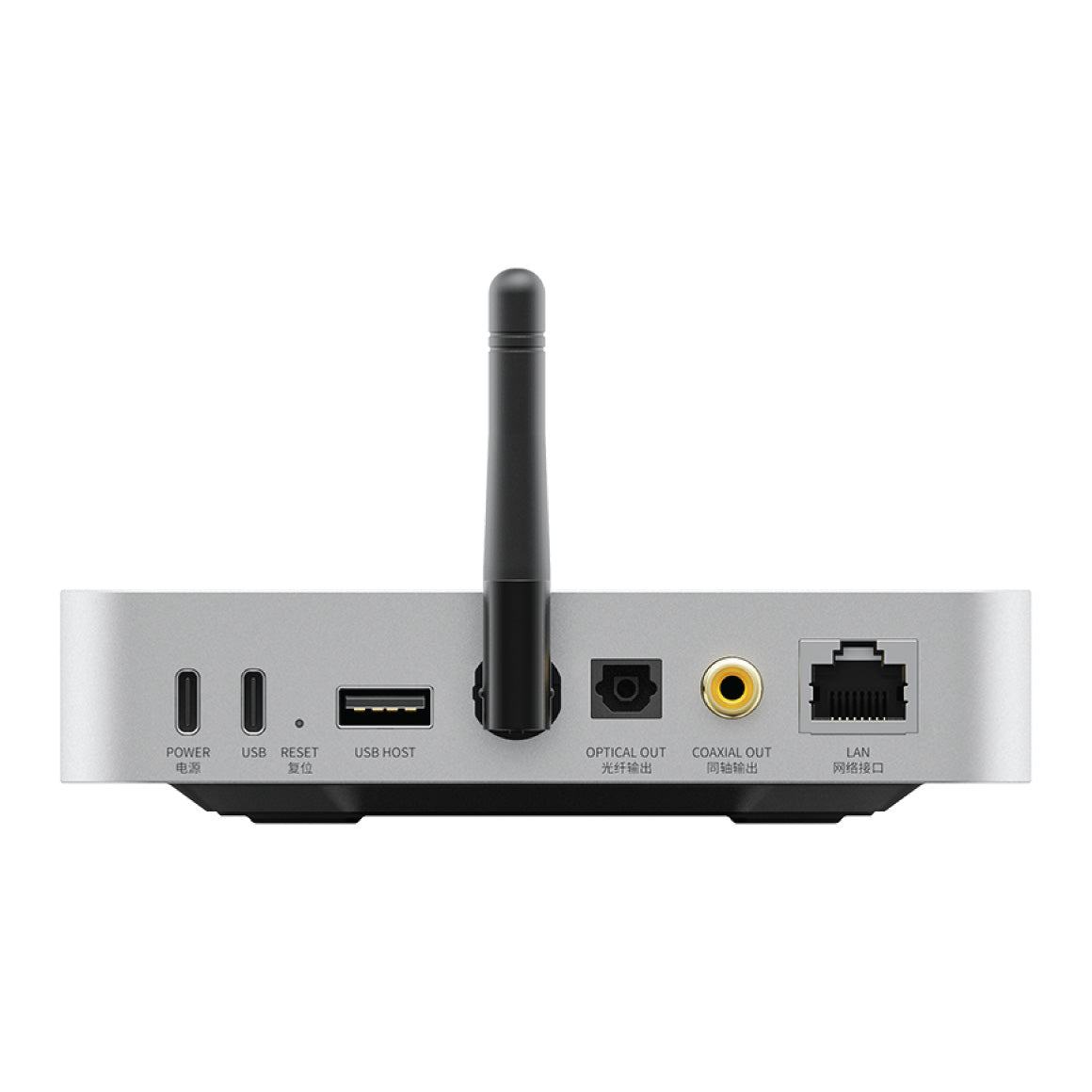
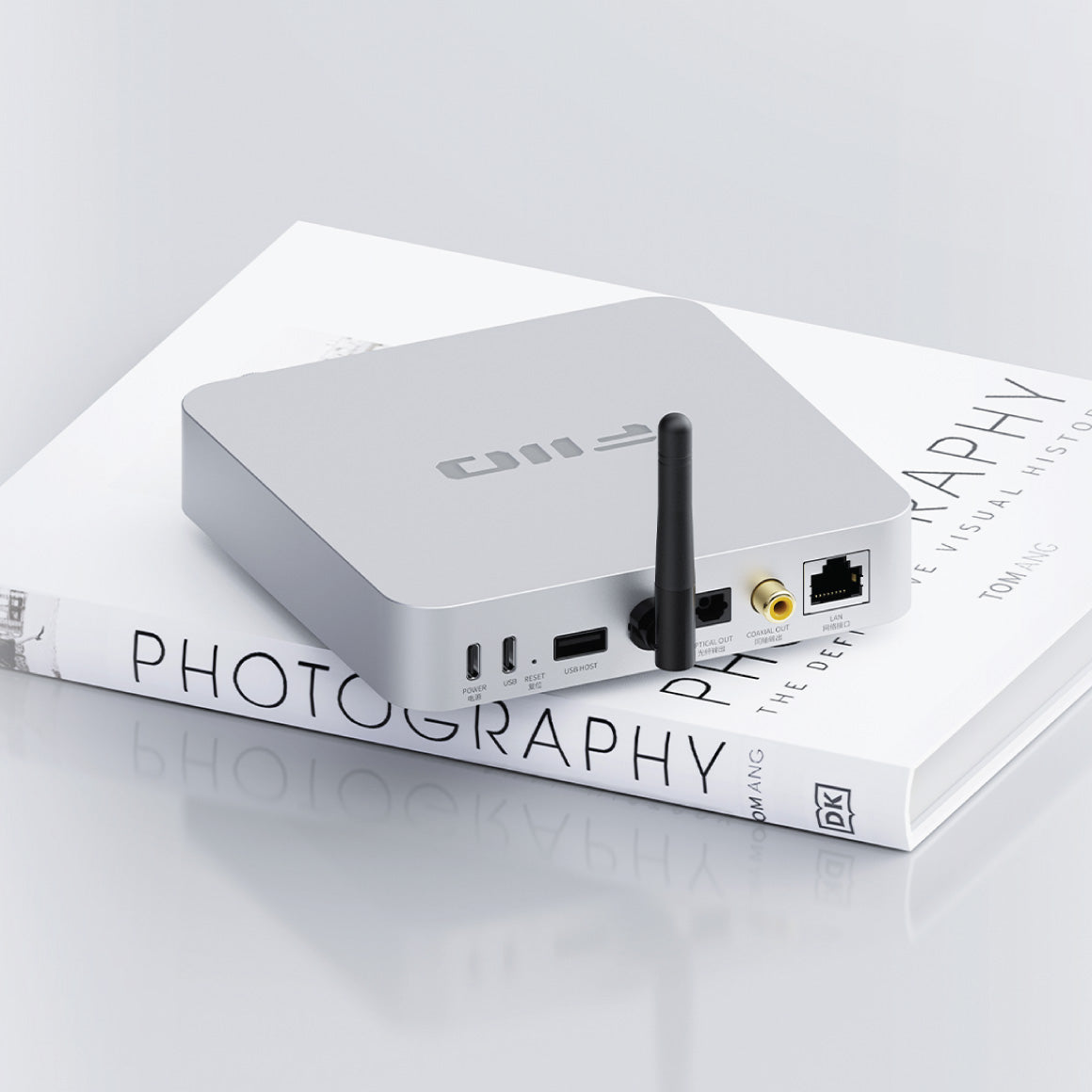
FiiO SR11 houses an ethernet port with the capacity to speed up to 1000Mbps with a wired connection for fast and stable data transmission. It features an AP6256 Wi-Fi module that supports 2.4GHz and 5GHz dual-band wireless networks that help to ensure stable audio processing for lossless audio. FiiO SR11 is embedded with an optical, coaxial, USB Type-A and Type-C digital output for easy compatibility.
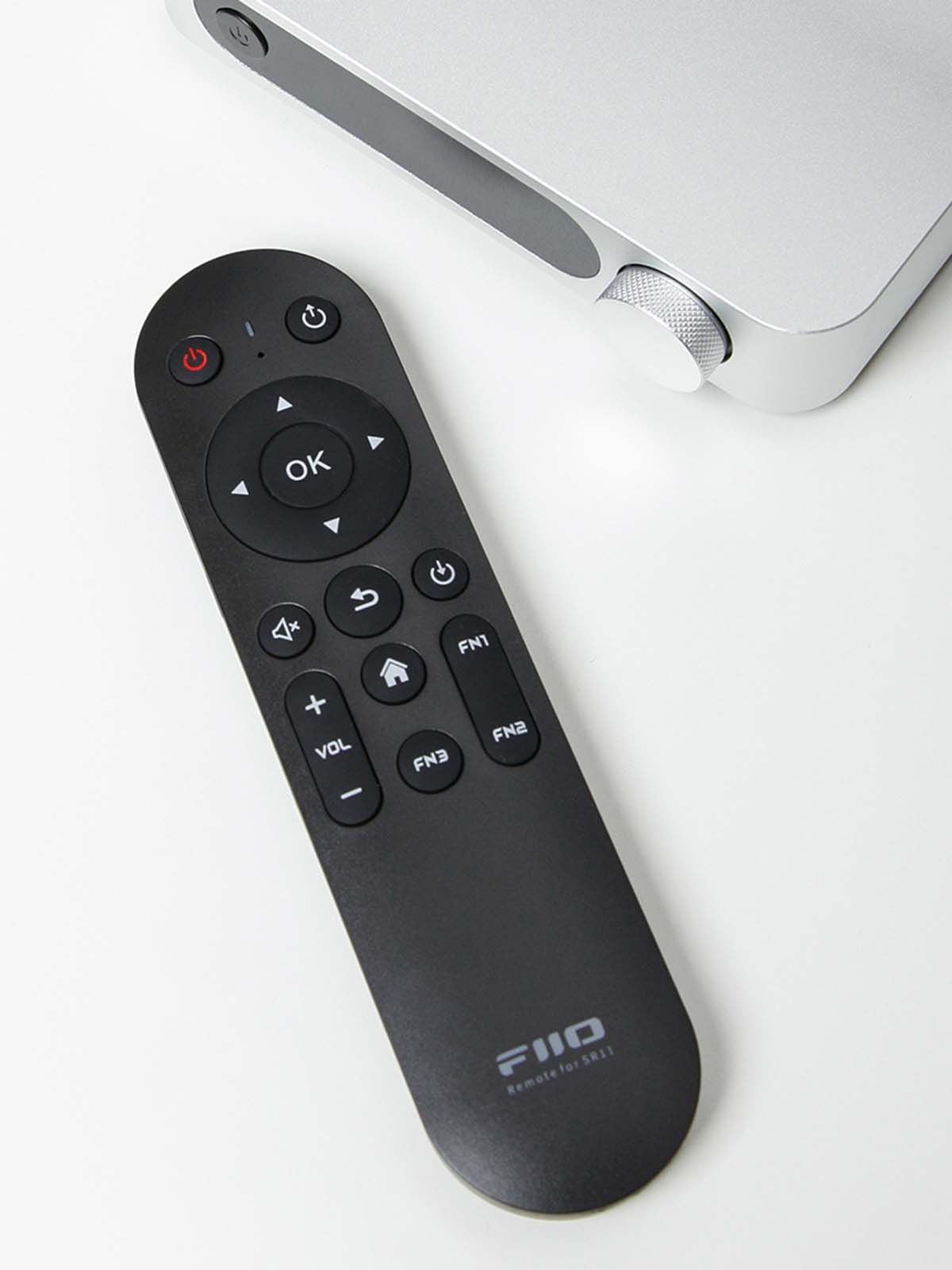
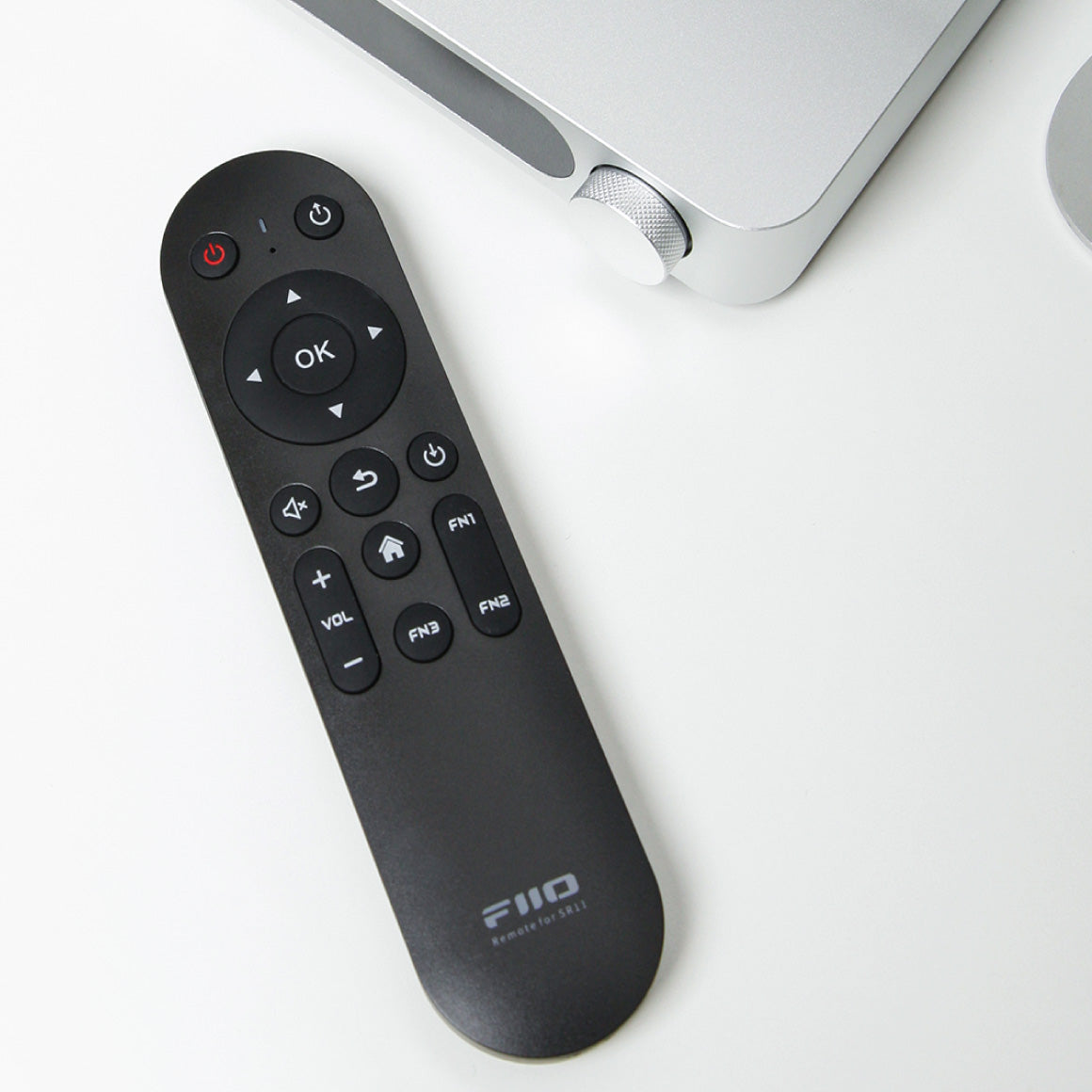
Bundled With A Custom Infrared Remote Control
Note: FiiO SR11 features constant firmware updates featuring the bluetooth reception, local playback and FiiO Link introduced by the FiiO’s development team.
All You Need To Know About The FiiO SR11
Hardware Solution
SoC: X2000WiFi Module: AP6256Power Supply: G2257Q51UEthernet: YT8531C
Product Details
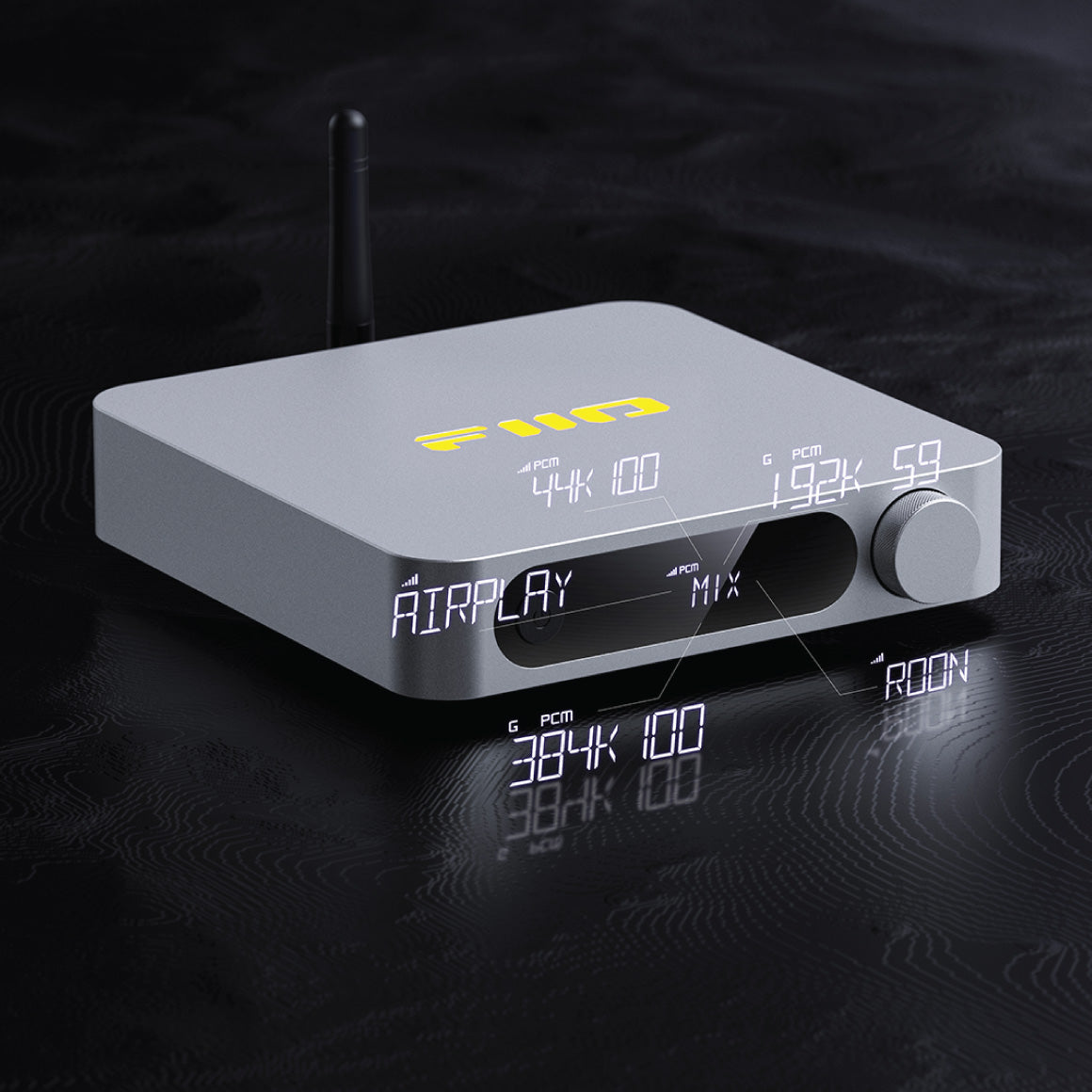
Volume Control: Knob/Remote controlDisplay: LCDDisplay Details: Sampling Rate, Volume Level, Working Mode, Output Mode, etc.Remote Control: Supports Infrared Remote Control (only the one included in the accessory)
Working Modes
MIX (Roon Ready and AirPlay two in one)Roon ReadyAirPlay
Wireless Network
5G+2.4G dual-band Wi-Fi 802.11 b/g/n/ac
Digital Output Distortion
0.000006% (0dB 1kHz 192k 24bit)
Max sampling Rates
ROON receivingUSB:768kHz-32bit/DSD256 (DoP)Actual receiving specification depends on the decoding capability of the power ampCoaxial: 192kHz-24bit/DSD64Optical: 192kHz-24bit/DSD64 AirPlay ReceivingAll PCM/DSD/MQA will be switched to 44.1kHz-16bit before output
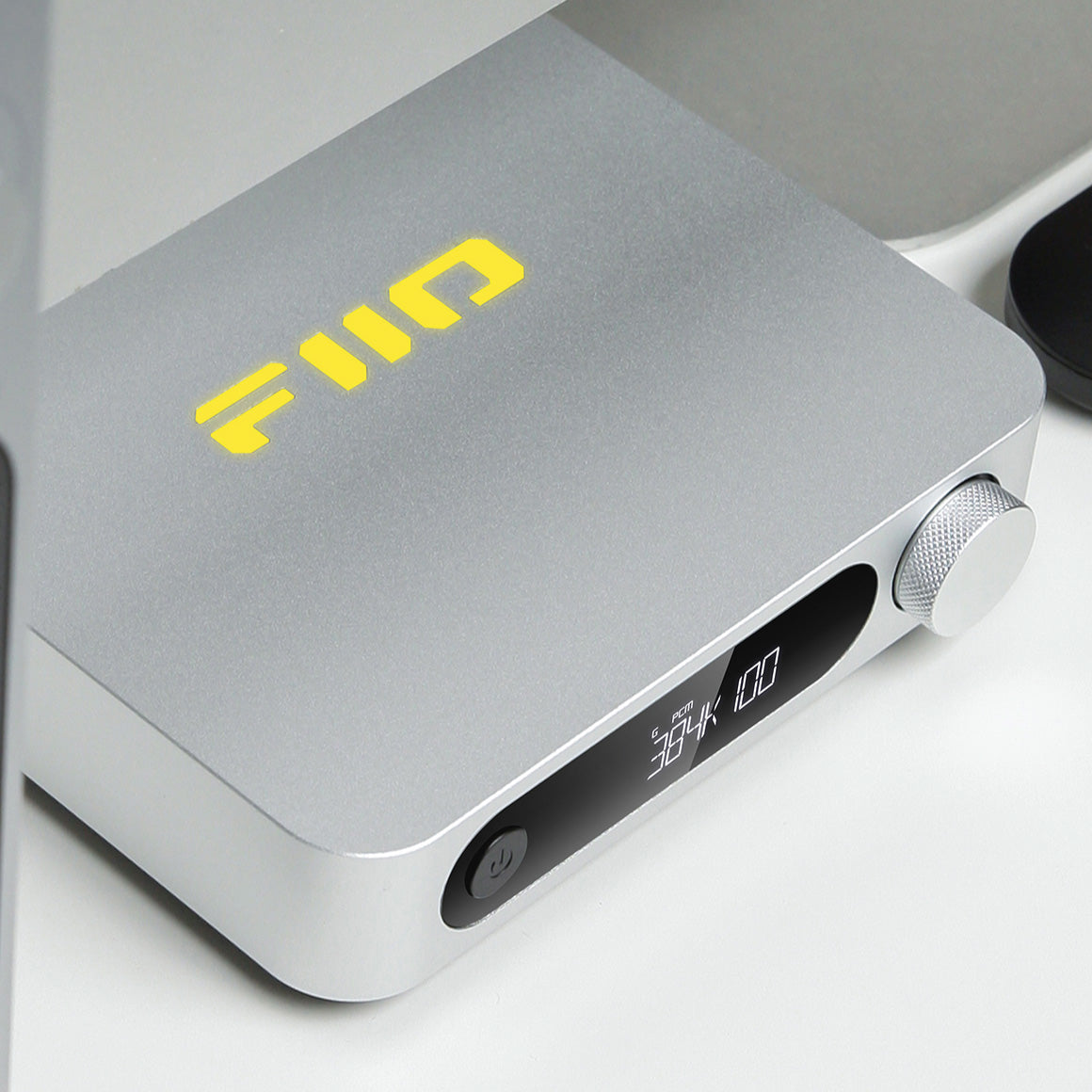
Sampling Rate by Logo Light
48kHz and below: Cyan; Above 48kHz: Yellow; DSD: Green
MQA
USB/Coaxial/Optical all support MQA when in full volume
Firmware Upgrade
Supports upgrade through a USB flash disk (both USB-A and Type-C ports)
Digital Coaxial Out
RCA Port
Digital Optical Out
Optical Port
USB
USB-A*1 (data transmission) + Type-C*2 (data transmission*1 + power supply*1)
Wired Network
Gigabit Ethernet Port
Reset Hole
Device on, Short Press the Button in the Reset Hole
Power Consumption
Static Current: 250mA (wired network connection, default brightness of screen and LOGO light)Coaxial/Optical Output Current: 250mA (wired network connection, default brightness of screen and LOGO light)USB Output Current: 290mA (wired network connection, default brightness of screen and LOGO light, no power consumption for power amp)
Power Supply
DC 5V/2A
Weight
375g
Dimensions
157x133x32.3mm
Box contents
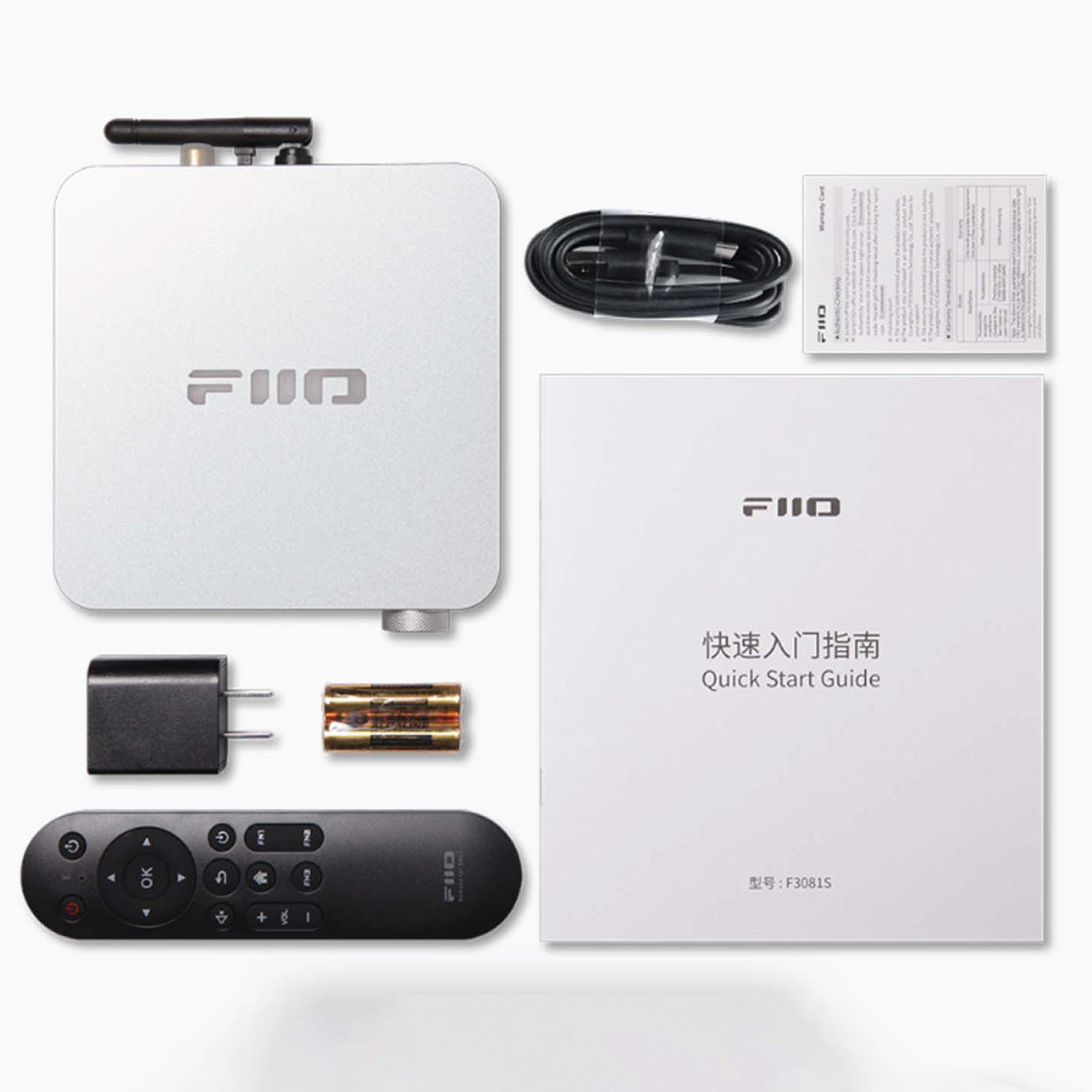
1. FiiO SR112. Custom power adapter*13. Custom Infrared Remote Control*14. USB cable*15. Quick Start Guide*1 6. Warranty Card*1
Have a question? Get in touch!
Check out the most common questions our customers ask. Still have questions? Talk to our Headphone Gurus.

Our customer support is available Monday to Friday: 11am-6pm.
What is the warranty period on the FiiO SR11 and how do I claim warranty?
The warranty period on FiiO SR11 is for 1 year. To read more information click here.
How to update the FiiO SR11 firmware?
To download the firmware, click here. 1. Copy the firmware installation package "SR11_update_xxxx" to the USB flash drive. (Do not unzip the firmware package.) 2. Insert the USB flash drive into the USB-A port or Type-C port on the back of the FiiO SR11. Wait for a few seconds and the screen will prompt DISK IN. 3. Long press the knob to enter the FiiO SR11 menu. Rotate the knob and select UPDATE in the menu. The screen will display Y/N. Select Y and SR11 will automatically select the latest firmware installation package in the USB flash drive. The screen will display UPDATIN, indicating that FiiO SR11 is undergoing a firmware upgrade. Do not operate FiiO SR11 during the upgrade process. 4. After the upgrade is completed, FiiO SR11 will automatically restart. You can enter the menu. If FW V174 is displayed, it means that the FiiO SR11 firmware upgrade is successful. After the firmware upgrade is successful, the original settings and network configuration information of FiiO SR11 will not be lost. After the firmware upgrade is completed, the firmware installation package in the USB flash drive will still be retained. Note: If FAIL is displayed during the upgrade process, it may be that the USB flash drive is not detected. In this case, you can re-plug the USB flash drive and wait for 5 seconds before trying to upgrade again. The USB flash drive formats supported by FiiO SR11 for firmware upgrade are FAT32, exFat, and NTFS. If NONE is display during the upgrade process, the system may not detect the firmware file. Please make sure that the correct firmware package has been copied to the root directory of the U disk. (The package is in .zip format. Do not unzip it or modify the file name.) If NO DISK is display during the upgrade process, the U disk is not inserted or not detected. Please reinsert the U disk or try with other U disk.
How to use Bluetooth mode in FiiO SR11? (Please update to V630 firmware first)
1. Turn on the device. On the homepage, short press the knob to enter the working mode menu. Rotate the knob and switch to "bT". Long press the knob to woking mode menu. 2. On the homepage, long press the knob to enter the setting menu. Rotate the knob and switch to the "OUT" and short press the knob. USB ouput: Rotate the knob and switch to “OUT USb”. Connect the USB decoding device to the USB-A or USB-C ouput port. Then connect the headphone to the USB decoding device. Coaxial or optical output: Rotate the knob and switch to “OUT SPD”. Connect the coaxial/optical decoding device to the coaxial/optical ouput port. Then connect the headphone to the coaxial/optical decoding device. 3. Go to the setting-Bluetooth menu of the mobile phone or other Bluetooth transmitting devices and find 'SR11' to connect. 4. Play the music in the APP of the mobile phone to enjoy the Bluetooth mode in FiiO SR11. What are the Bluetooth codecs supported in Bluetooth mode? - AAC/SBC/LDAC
How to use Local Playback mode in FiiO SR11? (Please update to V630 firmware first)
1. Turn on the device. On the homepage, short press the knob to enter the working mode menu. Rotate the knob and switch to "LOCAL". Long press the knob to woking mode menu. 2. On the homepage, long press the knob to enter the setting menu. Rotate the knob and switch to the "OUT" and short press the knob. USB ouput: Rotate the knob and switch to “OUT USb”. Connect the USB decoding device to the USB-A or USB-C ouput port. Then connect the headphone to the USB decoding device. Coaxial or optical output: Rotate the knob and switch to “OUT SPD”. Connect the coaxial/optical decoding device to the coaxial/optical ouput port. Then connect the headphone to the coaxial/optical decoding device. 3. Make sure that FiiO SR11 has completed network configuration and connect the mobile phone, FiiO SR11 to the same network. (FiiO SR11 Network connections instruction) 4.Install the latest version FiiO Control APP in your mobile phone. (If a permission prompt appears for the first time, please click “Allow” to obtain the corresponding permissions.) Go to FiiO Control APP-Add a new device-Player and you will find FiiO SR11. After successful connection, you will enter the control interface of FiiO SR11.
How to use Airplay mode?
AirPlay is a dedicated transfer mode for iOS devices, which requires an iPhone/iPad/MAC. Here is an example of how to use it with iPhone: 1. Turn on the device. On the homepage, short press the knob to enter the working mode menu. Rotate the knob and switch to "AirPlay". Long press the knob to woking mode menu. 2. On the homepage, long press the knob to enter the setting menu. Rotate the knob and switch to the "OUT" and short press the knob. USB ouput: Rotate the knob and switch to “OUT USb”. Connect the USB decoding device to the USB-A or USB-C ouput port. Then connect the headphone to the USB decoding device. Coaxial or optical output: Rotate the knob and switch to “OUT SPD”. Connect the coaxial/optical decoding device to the coaxial/optical ouput port. Then connect the headphone to the coaxial/optical decoding device. 3. Make sure that FiiO SR11 has completed network configuration and connect the iPhone, FiiO SR11 to the same network. 4. Click the audio playback device in the pull-down menu of iPhone. Select FiiO SR11 as the audio receiving device. Play music via any APPs on the iPhone, the sound will output from the decoding device.
How to use ROON mode?
Here is an example of how to use Roon Ready with FiiO SR11, using a computer as the core and control app, and FiiO SR11 as the output. (The default name of this device as displayed on your computer’s Roon Core may vary and can be changed to whatever you want.) 1. You need to have a PC running Roons core software before anything else. Official website of Roon: https://roonlabs.com/ 2. Download Roon on your computer and log in your Roon account. On the computer: Roon-Setting-Storage: Add local music or log in your Tidal account as the media library 3. Turn on the FiiO SR11. On the homepage, short press the knob to enter the working mode menu. Rotate the knob and switch to "ROON". Long press the knob to woking mode menu. 4. Make sure that FiiO SR11 has completed network configuration and connect the computer, FiiO SR11 to the same network. 5. On the computer: Roon-Settings-Audio page: Enable FiiO SR11 Audio device. You can control the playback of FiiO SR11 from the Roon on your computer and drop music files over the network to the FiiO SR11. The FiiO SR11 will output to the decoding device for decoding.
You May Also Like
Product Title